App Settings
Change how Mekuru looks and works: language, theme, reader defaults, dictionaries, Anki, downloads, backups and Pro.
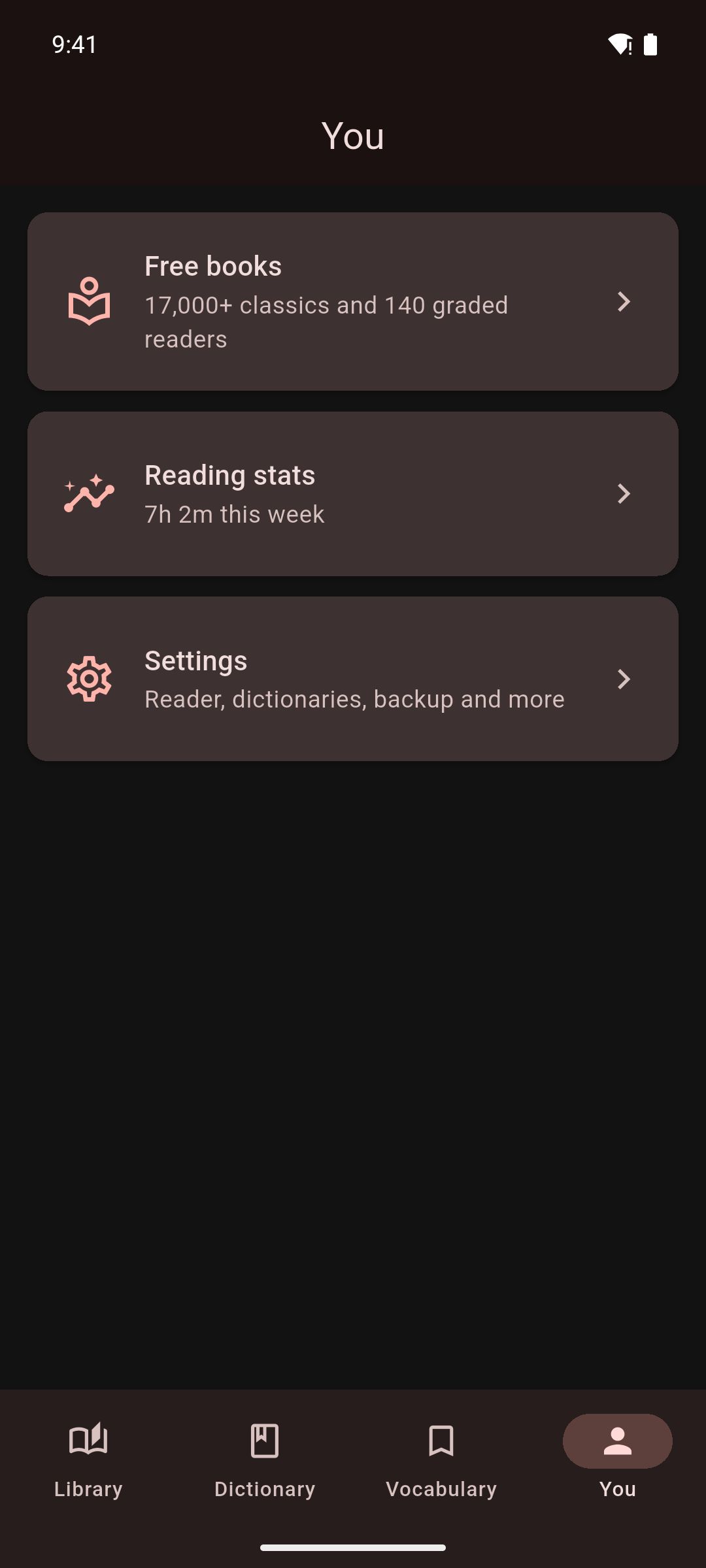
Open Settings
- Tap the You tab.
- Tap Settings.
The You tab also has Free books and Reading stats. See Free Books and Reading Stats.
The sections below follow the order of the Settings screen.
General
- App Language: the language of Mekuru's menus. Choose System default, English, Español, Bahasa Indonesia or 简体中文. Sentence translations in the lookup sheet use this language too. If your phone uses another language, Mekuru uses English.
- Startup Screen: what Mekuru shows when it starts: Library, Dictionary or Last Read Book.
Appearance
- Theme: Light, Dark or System default.
- Color Theme: the app's accent color. Mekuru Red is the default. Others include Indigo, Teal and Blue.
Reading
- Reader Settings: the settings for every book, in three sections: All books, EPUB and Manga. With Pro, the Manga section also has Custom OCR Server. See Display Settings.
- WaniKani: link your WaniKani account to hide furigana (small kana over kanji that show the reading) for kanji you have already learned. Once linked, the row shows Linked as and your user name. See Furigana.
Dictionary
- Manage Dictionaries: import, reorder, turn on or off, and delete dictionaries. See Managing Dictionaries.
- Lookup Font Size: the text size in the lookup sheet.
- Sentence translation: what the Sentence tab of the lookup sheet does with its translation: Show translation, Hide until tapped or Off.
- Translation model: Standard, or High quality, a larger model (about 2.6 GB to download) that translates better on phones with plenty of memory.
- Filter Roman Letter Entries: hides entries whose headword is written in English letters, such as CD, from the Dictionary tab search. See Looking Up Words.
- Auto-Focus Search: opens the keyboard when you switch to the Dictionary tab.
Android only
Translation model and High quality translation are not available on iPhone and iPad. There, the Sentence tab always uses Apple's translation.
Vocabulary & Export
- AnkiDroid Integration on Android, or Anki Integration on iPhone and iPad: choose how the words you send to Anki become cards. See Exporting to Anki.
Server sync
- Book servers: connect to your own Komga or Kavita server, browse and download its books, and keep your reading progress in sync. See Book Servers.
Pro
Pro opens the Mekuru Pro screen. Pro is a one-time purchase. It unlocks:
- Auto-Crop: trims the empty white margins around manga pages, so the art fills more of the screen. See Reading Manga.
- Book Highlights: save and review highlighted passages in EPUB books.
- On-device OCR: reads the text in manga pages on your device, offline. OCR means reading the text in an image.
- Custom OCR Server: remote manga OCR with your own server.
To buy Pro, tap Unlock Pro. The button shows the price. You pay through Google Play on Android and through the App Store on iPhone and iPad. There is no Mekuru account and no sign-in.
When Pro is active, the screen says You have Mekuru Pro.
To get Pro back after you reinstall Mekuru or move to a new phone, open this screen and tap Restore Purchase. Mekuru asks the store for your purchase, so use the same Google or Apple account you bought it with. A purchase on Google Play does not unlock Pro on iPhone or iPad, or the other way round.
The OCR settings are in three places:
- the OCR models, in Downloads;
- Custom OCR Server, in Reader Settings (in the Manga section);
- Test device speed, on the Pro screen and in Downloads (Android only).
See On-device OCR and Remote OCR (Pro).
Downloads
Downloads installs and removes extra data:
- Dictionaries: the starter pack (Jitendex and word frequency), KANJIDIC and More Dictionaries.
- Assets: Kanji Stroke Order, Word Frequency and the Enhanced Furigana Dictionary.
- Japanese translation and High-quality translation (Gemma 4), the translation models. Android only.
- Japanese manga OCR — manga-ocr: the manga OCR model pack.
- Scanned-book reader — NDLOCR-Lite: the NDL text model for scanned free books and the PDFs you import.
See Downloads.
Backup & Restore
Backup & Restore makes two kinds of backup: a small reading data backup (.mekuru) and a full backup (.zip) of your whole library. See Backup & Restore.
About & Feedback
- Send Feedback: send a bug report or an idea from inside the app. Only Message is required. Name and Email are optional.
- Rate Mekuru: opens Mekuru's page in Google Play or the App Store, where you can leave a review.
- Documentation: opens this guide.
- About Mekuru: the app version, the Privacy Policy, and Attributions, which lists data sources, licenses and credits.