Bookmarks & Highlights
Save pages to come back to, and mark passages in color while you read an EPUB book.
Before you start
- Bookmarks are free.
- Highlights need Pro. See You › Settings › Pro.
- Both work in EPUB books only.
Bookmarks
Bookmark a page
- Tap an empty spot in the middle of the page to show the controls.
- Tap Bookmark Page (bookmark icon) at the top.
The icon fills in and "Page bookmarked" appears.
Go back to a bookmark
- Show the controls.
- Tap View Bookmarks (the icon next to the bookmark icon).
- Tap a bookmark.
Each bookmark shows how far into the book it is, as a percentage, and the date you added it.
To see a book's bookmarks from the library, press and hold the book and tap Bookmarks. Tap one to open the book at that page.
Remove a bookmark
Do one of these:
- On the bookmarked page, tap the bookmark icon again (Remove Bookmark).
- In the bookmarks list, swipe the bookmark to the left.
Highlights
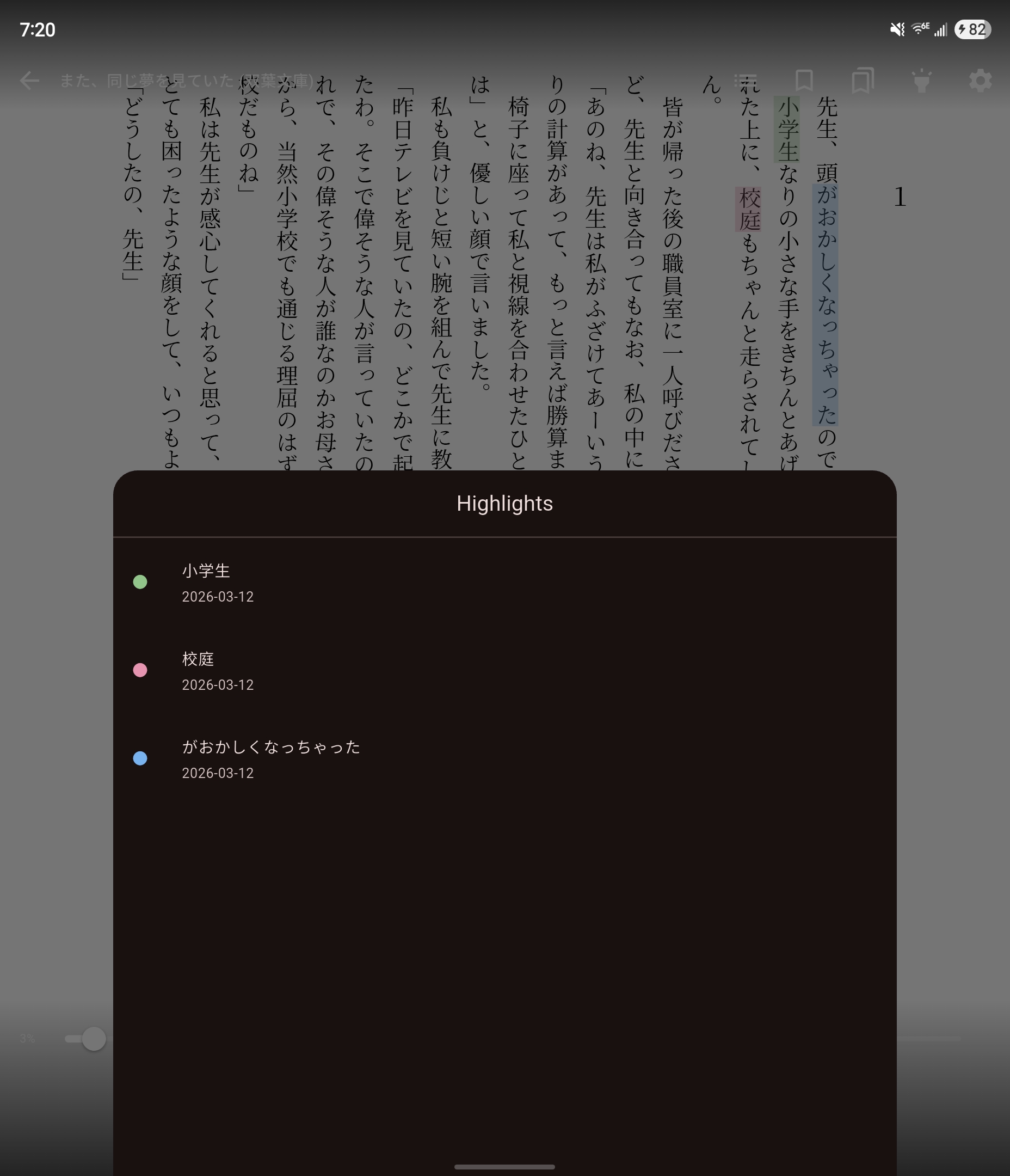
Highlight a passage
- Press and hold a word in the book to select it.
- Drag the selection handles to cover the passage.
- Tap the highlighter button at the bottom right (Highlight selection).
- To mark the whole sentence, tap Select sentence. This step is optional.
- Tap a color: yellow, blue, green or pink.
Without Pro, the highlighter button opens the Pro screen instead.
Your highlights show in the text every time you open the book.
See your highlights
- Show the controls.
- Tap Highlights (highlighter icon) at the top.
Each highlight shows its color, the text, the date and your note. In the list you can:
- Tap a highlight to jump to it in the book.
- Press and hold a highlight to add or change its note. Type the note in Edit Note and tap Save.
- Swipe a highlight to the left to delete it.
To see a book's highlights from the library, press and hold the book and tap Highlights. Tap one to open the book there.
If something goes wrong
- The Highlights button is dimmed. Highlights need Pro. Tap the button to open the Pro screen.
- "No bookmarks yet." You have not bookmarked a page in this book. Tap the bookmark icon while reading to add one.