On-device OCR
On-device OCR (Pro) reads the Japanese text in your manga pages, so you can tap the words to look them up. OCR means reading the text in an image. It runs on your device and works offline, so your page images never leave it.
Before you start
You need:
- Mekuru Pro. If you start a scan without Pro, Mekuru opens the Pro screen. See App Settings.
- The manga OCR model pack, a free download of about 296 MB. You do not need Pro to download it.
- On Android, a phone or tablet with a 64-bit ARM processor. A scan needs about 1 GB of free memory.
To download the manga OCR model pack:
- Open You › Settings › Downloads.
- Find Japanese manga OCR — manga-ocr and tap Download.
Mekuru downloads over Wi-Fi. On mobile data, it asks first. If the download stops, tap Resume: it continues where it stopped.
On iPhone and iPad
You can scan without downloading anything: Apple's text recognition finds and reads the text. The manga OCR model pack (about 202 MB) is optional. It reads manga text more accurately. Download it from the same row in Downloads.
Check your phone's speed first
Scanning is heavy work. Speed varies a lot from phone to phone, and it uses a lot of battery. Test device speed scans a sample page and shows the time per page and an estimate for a 200-page volume.
You find Test device speed in two places:
- on the Pro screen (You › Settings › Pro), in the On-device OCR card. Until the model pack is installed, the card offers its download instead;
- in Downloads, under Japanese manga OCR — manga-ocr, once the model pack is installed.
The test needs the model pack installed, but not Pro.
Android only
Test device speed is not available on iPhone and iPad.
Scan the page you are reading
- Open the manga and tap the middle of the page to show the controls.
- Tap the scan icon at the top of the screen, next to the gear icon.
The first time, the Recognize text sheet opens so you can choose how to scan. See the next section.
After that, one tap scans the pages on screen right away, with the method you used last. A message confirms it, for example "Recognizing page 12 on device". Tap Options in the message to open the Recognize text sheet instead.
If the pages on screen already have text, Mekuru says "This page already has OCR". Tap Replace existing OCR in that message to scan them again.
Choose what to scan
The Recognize text sheet lets you scan one page or the whole manga. To open it, do one of these:
- In the reader, press and hold the scan icon.
- In the Library, press and hold the manga, then tap Recognize text.
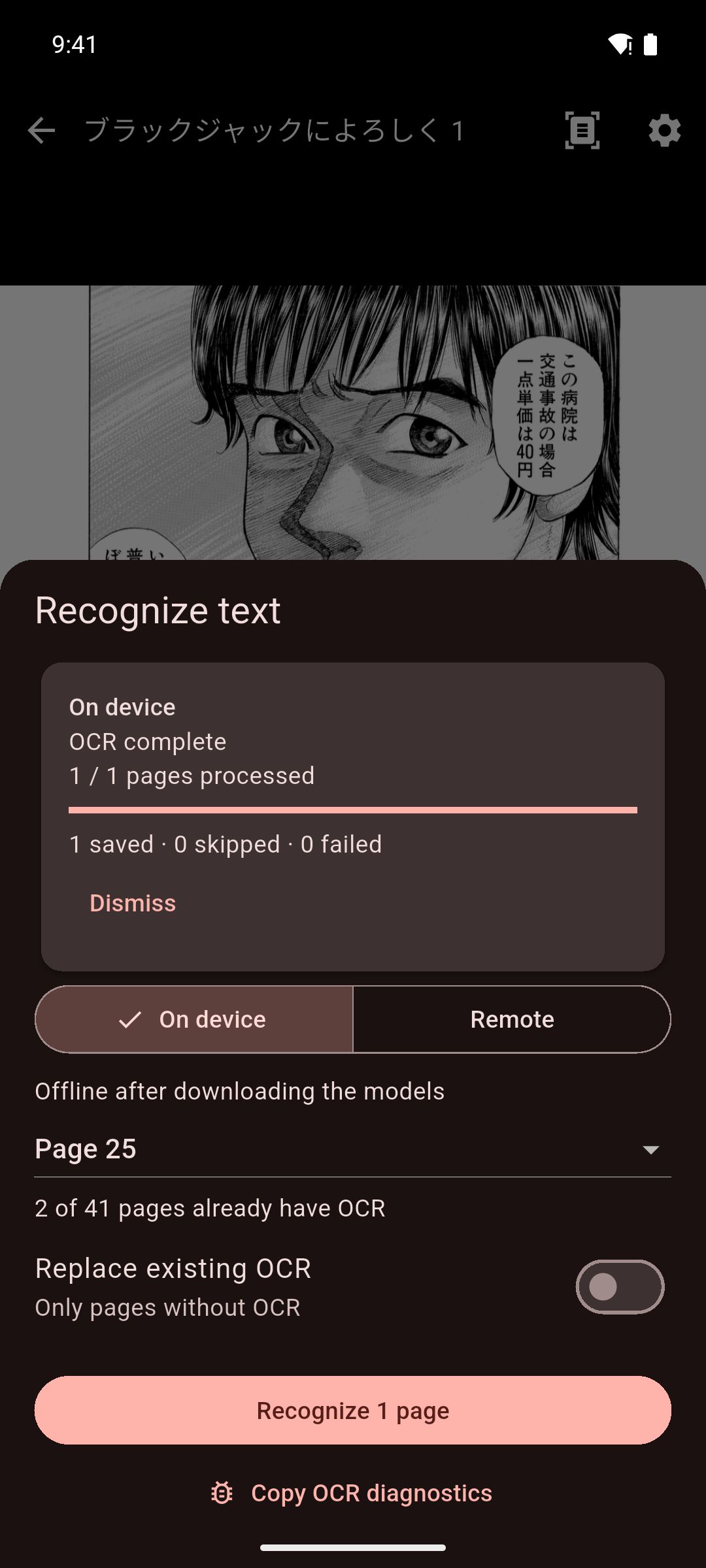
- Choose On device. (Remote sends the pages to your own OCR server. See Remote OCR (Pro).)
- Choose the pages:
- a single page, such as Page 12. In Spread view, each page on screen is listed.
- Entire manga. From the library, the sheet always scans the entire manga.
- Leave Replace existing OCR off to scan only pages that have no text yet. The sheet shows how many pages already have text.
- Turn on Replace existing OCR to scan the chosen pages again. The old text of a page stays until its new text is saved.
- On Android, when you scan the entire manga, you can tick Only while charging.
- Tap Recognize 1 page or Recognize followed by the number of pages.
You can keep reading while Mekuru scans. Words become tappable as each page is finished.
Follow, pause and resume a scan
On Android
You can follow the scan in several places:
- A dark panel over the page you are on, while that page is being scanned. It shows the progress and the time left, with Cancel.
- The Recognize text sheet, with the number of pages saved, skipped and failed.
- The manga's cover in the Library.
- A notification, with Pause and Cancel. Mekuru may ask to show notifications. The scan runs either way.
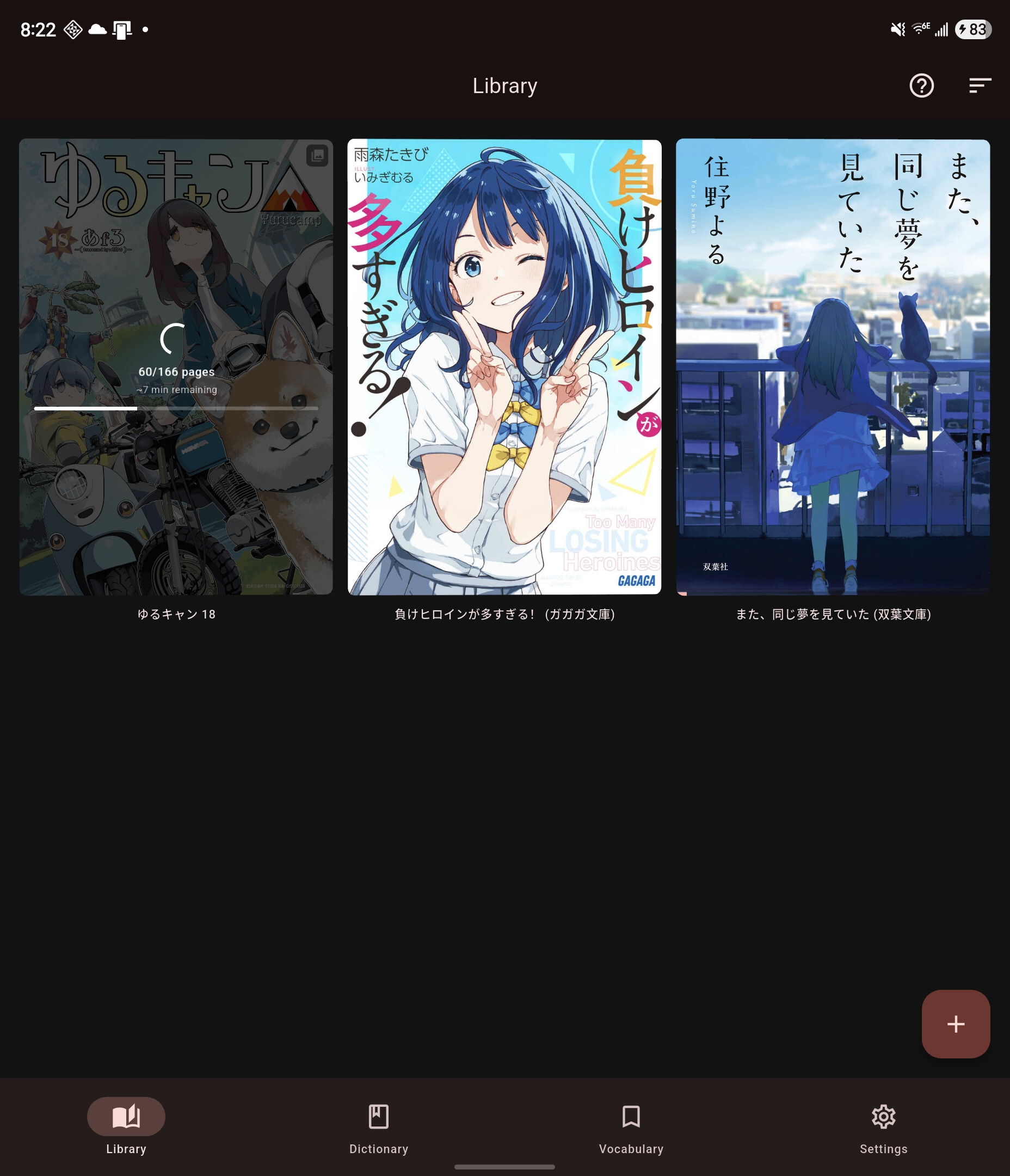
The scan keeps running in the background when you leave Mekuru.
- Pause stops the scan and saves its progress. Tap Resume in the Recognize text sheet to go on.
- Cancel scan stops the scan for good. Pages that are already done keep their text.
- If some pages failed, tap Retry failed pages. Open Page errors to see what went wrong.
Mekuru pauses a scan by itself when:
- the phone is low on memory. Close other apps, then resume.
- the phone is too hot. Let it cool, then resume.
- the battery is below 15% and the phone is not charging.
- you chose Only while charging and unplugged the phone.
Android can also stop long background work, and a restart stops it too. Your progress is saved: open the Recognize text sheet and tap Resume.
On iPhone and iPad
- A panel at the bottom of the reader shows the progress, with Pause.
- The manga's cover in the Library shows the progress too.
The scan keeps going after you leave Mekuru, and iOS shows its progress in a Live Activity. If you stop the Live Activity, or iOS ends it, the scan pauses. If Mekuru is closed, the scan stops.
To continue a paused or stopped scan, open the Recognize text sheet and tap Recognize again. Pages that already have text are skipped.
Scan graded readers from free books
Some graded readers in Free books are scans: photos of printed pages, with no text inside. To tap their words, scan them with on-device OCR. This also needs Pro.
These books need the NDL text model (42.6 MB). It reads their long lines of text much more accurately.
- Open You › Settings › Downloads.
- Find Scanned-book reader — NDLOCR-Lite and tap Download.
If the NDL text model is missing when you start a scan, Mekuru says Scanned-book reader needed. Tap Open Downloads.
Free books are always scanned on your device: the Recognize text sheet has no Remote choice for them. On Android you need the manga OCR model pack as well.
A scanned PDF that you import yourself is scanned like a manga. When you import one, Mekuru tells you that it looks like a scan. If you downloaded the NDL text model, on-device OCR also uses it to read the long lines of text in the PDFs you import. Without it, Mekuru scans them anyway and doesn't ask for it.
Remove the models or the text
- Remove a model: in Downloads, tap Remove on its row. Text you already recognized stays in your manga.
- Delete the text of a manga: in the Library, press and hold the manga, then tap Delete OCR. For a manga made with mokuro (a tool that adds OCR text to manga), this brings back its original mokuro text. For a PDF, the text that came with the PDF stays.
If something goes wrong
- "On-device OCR requires a supported 64-bit ARM Android device." Your device cannot run on-device OCR. Use remote OCR instead.
- The Recognize button is grayed out. Every page you chose already has text. Turn on Replace existing OCR.
- "The model files failed verification." Remove the manga OCR model pack in Downloads and download it again.
- "This manga already has an OCR job." Pause or cancel the scan that is running before you start another.
- "There is not enough free storage to continue." Free some space on your device, then resume.
Model credits and licenses are in You › Settings › About Mekuru › Attributions.