Reading Manga
Read manga page by page, choose how pages are shown, and tap words to look them up.
Before you start
- Import a manga first. See Importing Manga.
- To tap words, the pages need text. Manga made with mokuro (a tool that adds OCR text to manga pages) already have it, and reading them is free. For other manga, Pro can add the text with on-device OCR or remote OCR. OCR means reading the text in an image.
Open a manga
- Open the Library tab.
- Tap the manga.
Mekuru opens it at the page where you stopped. PDFs open in the same reader.
Turn pages
- Tap near the left or right edge of the screen.
- Or swipe left or right.
Tap the middle of the page to show or hide the controls.
Most Japanese manga read Right to Left, which is the default. The next page is then on the left: tap the left edge, or swipe from left to right. In a Left to Right manga it is the other way round.
Jump to a page
- Tap the middle of the page to show the controls.
- Drag the slider at the bottom of the screen. It shows the page you are on and the total number of pages.
In a right-to-left manga the slider also runs from right to left.
Choose a view mode
- Tap the middle of the page to show the controls.
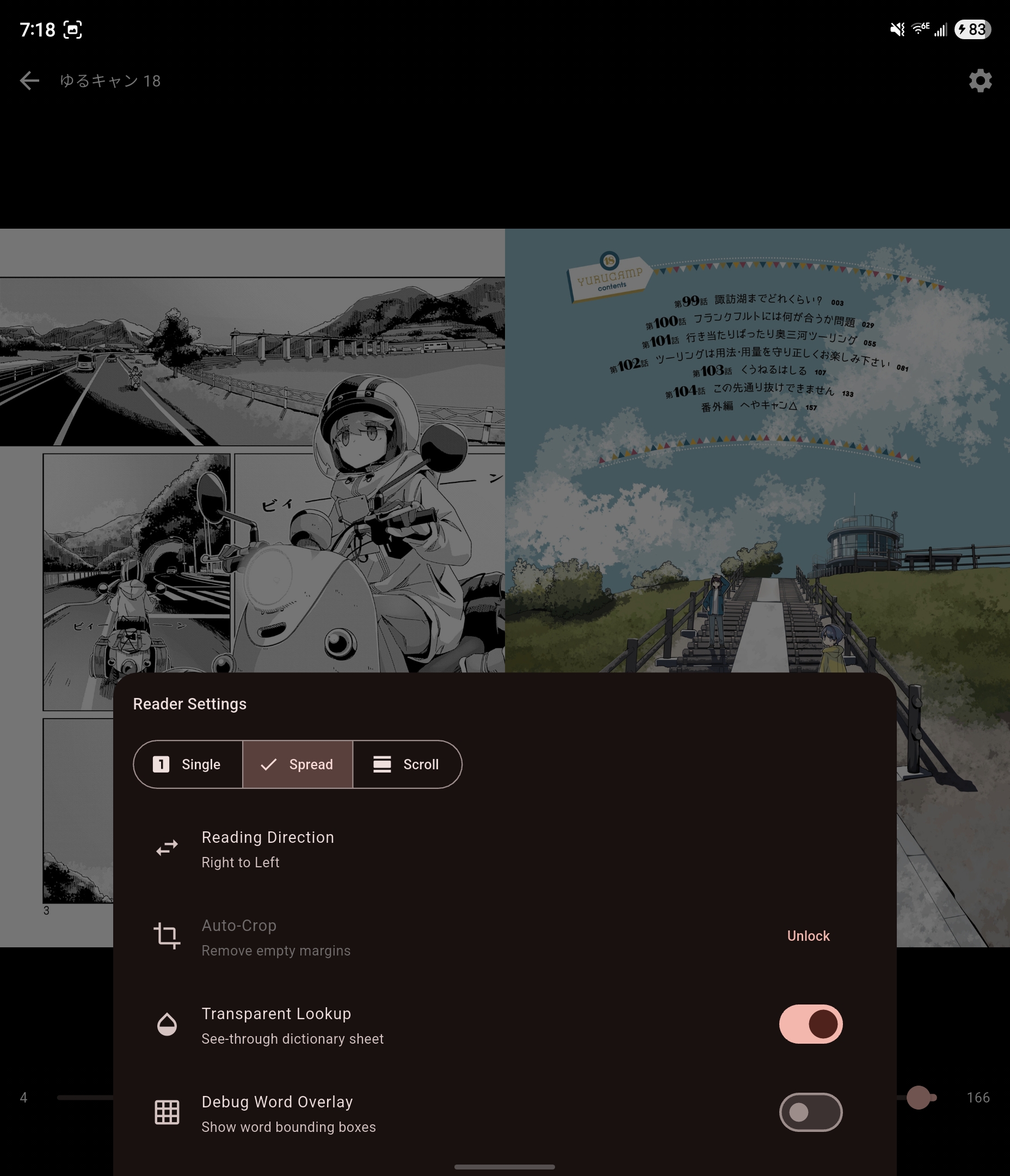
- Tap the gear icon (Settings) at the top of the screen.
- Under View Mode, choose one:
- Single: one page at a time.
- Spread: two pages side by side, like an open book. The cover is shown on its own.
- Scroll: all pages in one long vertical strip. Scroll up and down to read. In this mode, tapping the page only shows or hides the controls.
Change the reading direction
In the reader settings, under Reading Direction, choose Right to Left or Left to Right.
This choice applies to all your manga. A PDF is the exception: the direction you choose in a PDF applies to that PDF only.
Zoom in
- Pinch with two fingers to zoom in, up to five times the page size.
- Drag with one finger to move around the page.
- Pinch again to zoom back out.
While you are zoomed in, tapping the edge does not turn the page. Drag past the edge of the page to go to the next one.
Look up a word
On a page that has text, tap a word. The lookup sheet opens with the dictionary entries, and the word is highlighted on the page. If the word is in the lower half of the screen, the sheet opens at the top so it does not cover the word.
A page has text when:
- the manga was made with mokuro, or is a CBZ (a zip of comic page images) that includes mokuro text;
- the PDF was made from text, like most ebooks;
- you added the text with on-device OCR or remote OCR (Pro).
To learn more about the lookup sheet, see Looking Up Words.
Reader settings
Tap the gear icon at the top of the reader to open Reader Settings. It has four groups.
Display
- Brightness: the screen brightness while you read. Tap the button next to the slider to Follow system brightness again.
- View Mode: Single, Spread or Scroll.
Reading
- Reading Direction: Right to Left or Left to Right.
- Page Turn Edge Zone: how much of each side of the screen turns the page when you tap it, from 5% to 25%. The default is 15%.
Image
- Auto-Crop (Pro): removes empty margins. See the next section.
Lookup
- Transparent Lookup: makes the lookup sheet see-through, so you can still see the page behind it. It is on by default.
- Debug Word Overlay: draws a box around every word Mekuru found on the page. Use it to check where the text is when a tap picks the wrong word.
The All settings button at the top of the sheet opens Reader Settings in You › Settings. The manga settings there are the same ones.
Trim empty margins with Auto-Crop (Pro)
Auto-Crop cuts the empty white margins around each page, so the art fills more of the screen.
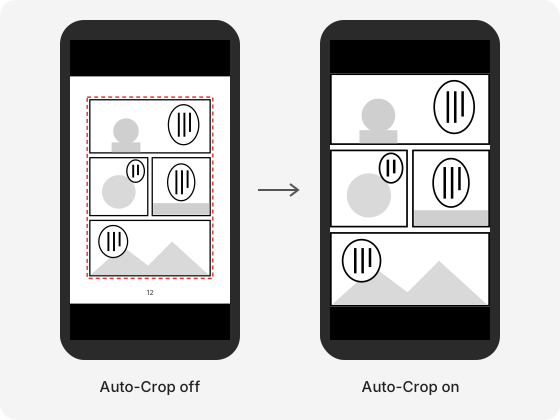
For example, most manga pages have a white border around the panels, often with the page number in it. A phone screen is narrower than a page, so Mekuru shrinks the whole page, border included, to fit. On the left, the border takes up space and the speech bubbles are small. With Auto-Crop on, Mekuru finds where the drawing starts on each side of the page and shows only the part inside the dashed line. On the right, the panels fill the width of the screen, and the text in the bubbles is bigger and easier to read. A page with a margin of a tenth of its width on each side shows about a quarter bigger.
- Mekuru measures every page on its own, so a page with wide margins loses more than a page with narrow ones. In Spread view, both pages keep the same top, bottom and inner edge, so they still line up.
- Page numbers and small specks in the margin are cut off with the margin. They do not stop the crop.
- Only white and near-white margins are cut. Black borders, colored backgrounds and art that runs to the edge of the page stay as they are.
- Your files do not change. Turn Auto-Crop off to see the whole pages again. Tapping words works the same either way.
To turn it on:
- In the reader, tap the gear icon.
- Under Image, turn on Auto-Crop.
- The first time, Mekuru asks to scan every page of this manga. Tap Continue and wait. This can take a minute.
Auto-Crop is one switch for all your manga, but Mekuru scans each manga separately. When you open a manga it hasn't scanned yet, it asks to scan that one too. If you tap Cancel, the manga keeps its margins; it asks again the next time you open it.
If Auto-Crop cuts too much or too little:
- Open You › Settings › Reader Settings.
- In the Manga section, change White Threshold. It sets how light a mark must be to count as empty margin, from 200 to 255: at 255 only pure white counts, and lower values also count light gray. The default is 240.
- If Auto-Crop leaves a border, for example on a scan with a gray tint or smudges near the edge, lower it to about 220.
- If Auto-Crop cuts into pale art near the edge of the page, raise it.
- Go back to the manga, open the reader settings and tap Re-run Auto-Crop.
Without Pro, the Auto-Crop row shows Unlock, which opens the Pro screen.
If something goes wrong
- Tapping a word does nothing. The page has no text yet. Add it with on-device OCR or remote OCR.
- Tapping the edge does not turn the page. You are zoomed in, or the manga is in Scroll view. Pinch to zoom out, or scroll instead.
- Page turns feel slow on an e-ink screen. Turn off Animations in You › Settings › Reader Settings. Pages then change instantly.
Android only
Volume buttons turn pages (in You › Settings › Reader Settings) lets you turn manga pages with the volume buttons. This feature is not available on iPhone and iPad.