Remote OCR (Pro)
Remote OCR sends your manga pages to an OCR server that you run yourself. The server reads the text and sends it back, so you can tap words to look them up. OCR means reading the text in an image.
Mekuru does not run an OCR server for you. Remote OCR only works with your own server, set up as a custom OCR server.
Use remote OCR when your phone cannot run on-device OCR, or scans too slowly. Otherwise, on-device OCR needs no server and keeps your pages on your device.
Before you start
You need:
- Mekuru Pro. If you start a scan without Pro, Mekuru opens the Pro screen.
- Your own OCR server that your phone can reach, entered in Mekuru as a custom OCR server. See Custom OCR Server.
Scan with remote OCR
- Open the Recognize text sheet. Do one of these:
- In the reader, press and hold the scan icon at the top of the screen.
- In the Library, press and hold the manga, then tap Recognize text.
- Choose Remote.
- Choose a single page or Entire manga.
- Leave Replace existing OCR off to scan only pages that have no text yet, or turn it on to scan the chosen pages again.
- Tap Recognize 1 page or Recognize followed by the number of pages.
Mekuru sends the page images to your server, one page at a time. It never sends pages to a server unless you choose Remote.
Mekuru remembers your choice. The next time you tap the scan icon in the reader, it scans the pages on screen with Remote again.
If no server is set up yet, Mekuru shows "Custom OCR Server Required". Tap Open Settings, enter your server, and go back. The scan then starts.
Follow, pause and continue a scan
While a scan runs:
- the manga's cover in the Library shows the pages done and the time left;
- the Recognize text sheet shows the pages processed, with Pause.
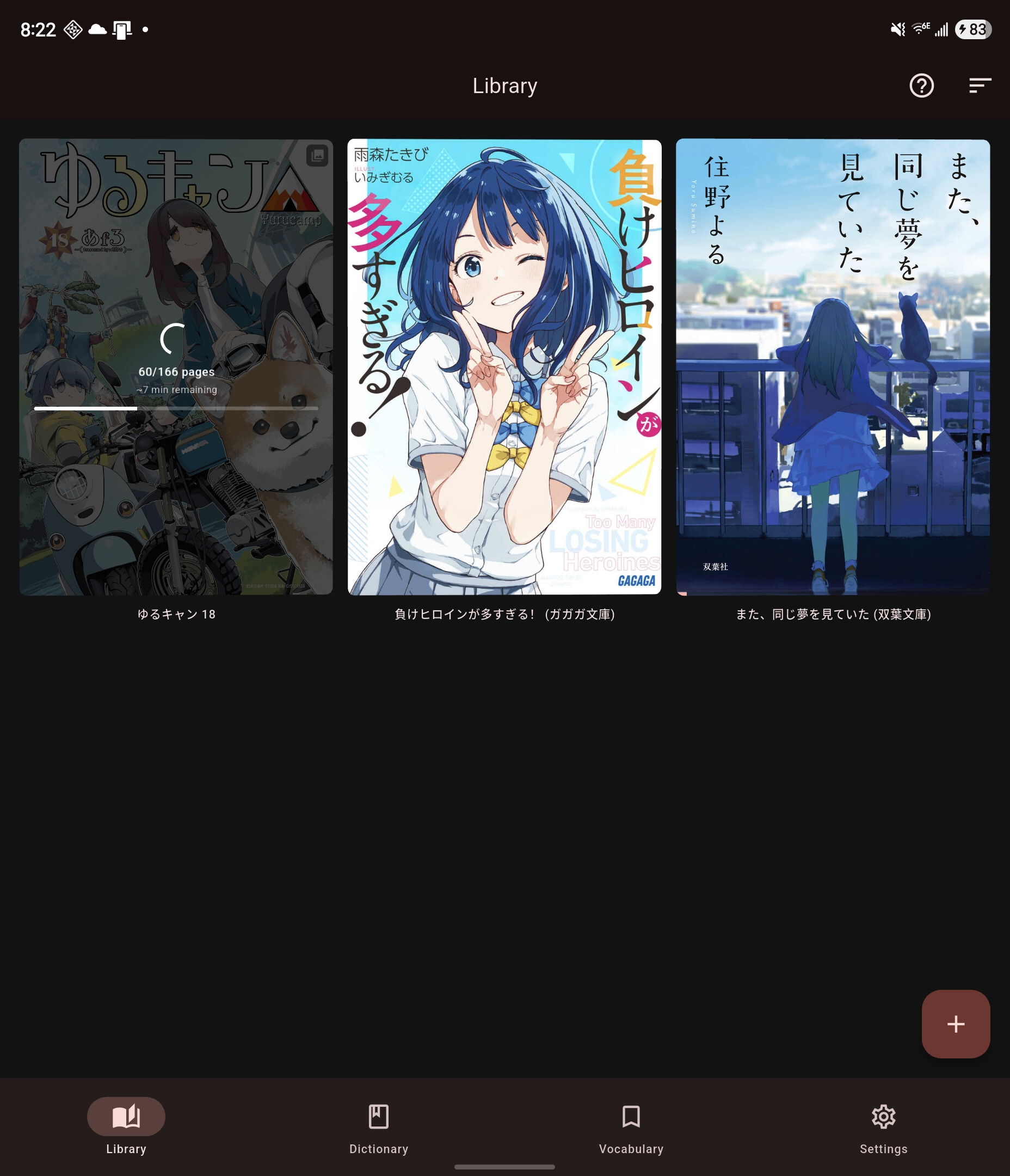
Pause stops the scan and keeps the pages that are done. To continue, open the Recognize text sheet and tap Recognize again. Pages that already have text are skipped.
If a scan fails, the cover shows OCR Failed. Tap it to see why.
To delete the text again, press and hold the manga in the Library and tap Delete OCR. For a manga made with mokuro (a tool that adds OCR text to manga), this brings back its original mokuro text.
On iPhone and iPad
A panel at the bottom of the reader also shows the progress. The scan keeps going after you leave Mekuru, and iOS shows its progress in a Live Activity. If you stop the Live Activity, or iOS ends it, the scan pauses. If Mekuru is closed, the scan stops. Start it again to continue.
On Android, the scan runs in the background, even after you leave Mekuru. It needs a network connection.