Setting Up Dictionaries
Mekuru needs at least one dictionary before you can look up words. This page shows the quickest way to get one, and how to add more.
Before you start
- You need an internet connection to download dictionaries. Importing a dictionary file works offline.
- Dictionaries take storage space. Jitendex, the dictionary in the starter pack, uses about 664 MB once installed.
- Dictionaries are free. You don't need Pro.
Install the starter pack
The starter pack has two parts:
- Jitendex: a modern Japanese–English dictionary with example sentences. It is a 39 MB download.
- Word Frequency: data from JPDB that shows how common each word is, and lists common words first. It is a download of about 6 MB.
To install it:
- In your empty library, tap Get Dictionaries. Mekuru starts installing the starter pack and opens the Downloads screen.
- If you are not on Wi-Fi, Mekuru asks before it uses mobile data. Tap Download to go ahead.
- Wait until both parts show a check mark. The last step can take a minute.
- Tap Open Dictionary to try a search.
You can also install the starter pack from two other places:
- In You › Settings › Downloads, tap Install Starter Pack.
- In the Dictionary tab, before you have any dictionaries, tap Recommended starter pack.
If you already have JMdict English, the starter pack skips Jitendex. Jitendex is built on JMdict, so with both you see most definitions twice.
Add more dictionaries
More Dictionaries lists openly licensed dictionaries that Mekuru downloads for you:
- Japanese–English: Jitendex, Wiktionary (English) and JMdict English.
- Japanese–Japanese: Wiktionary (日本語), with definitions in Japanese.
- Names: JMnedict, for the readings of the names of people, places and companies.
- Other Languages: JMdict in Spanish, German, French, Russian, Dutch, Hungarian, Swedish and Slovenian; KANJIDIC in Spanish, French and Portuguese; and Wiktionary (中文).
To download one:
- Open You › Settings › Downloads.
- Tap More Dictionaries.
- Find the dictionary. The list shows how big each download is and how much space it uses.
- Tap Download.
You can also open More Dictionaries from the Dictionary Manager with the More dictionaries button at the top. For every size, see Downloads.
Import a Yomitan dictionary
Yomitan is a browser extension for reading Japanese. Its dictionary format is widely shared, and Mekuru imports it. You can import two kinds of files:
- Yomitan dictionary (.zip): one dictionary. Any dictionary that Yomitan can import works.
- Yomitan collection (.json): several dictionaries in one file. You make it in Yomitan's settings, under Backup.
To import one:
- Save the
.zipor.jsonfile on your device. - Open the Dictionary tab.
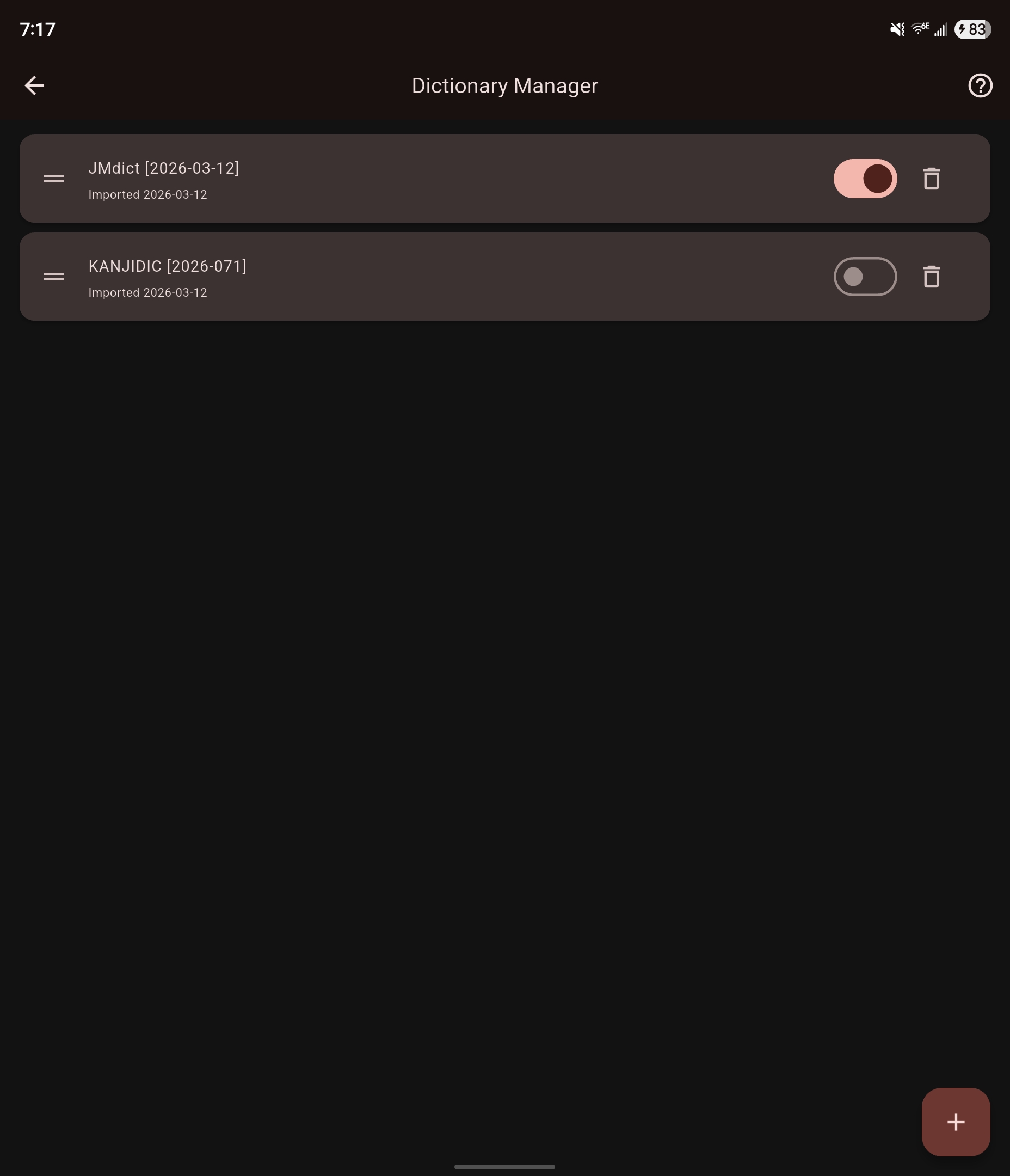
- Tap Manage Dictionaries (books icon) at the top right. The Dictionary Manager opens.
- Tap + (Import Dictionary).
- Choose the file.
- Wait for the import to finish. A large dictionary can take a few minutes.
On iPhone and iPad
The + button opens the Files picker. Save the file to Files first, for example from your Safari downloads.
To find more dictionaries, open More Dictionaries and scroll to Find More Dictionaries. It links to sites that list many Yomitan dictionaries, including ones Mekuru can't download for you.
Install the Enhanced Furigana Dictionary (optional)
Furigana are small kana over kanji that show the reading. Mekuru works out the readings for furigana, and where each word begins and ends when you tap. The Enhanced Furigana Dictionary makes both more accurate and knows about 10,000 more words. It does not turn furigana on or off.
It is a 45 MB download and uses about 250 MB on your device.
- Open You › Settings › Downloads.
- Find Enhanced Furigana Dictionary and tap Download. On mobile data, Mekuru asks first.
- If you don't see a change, restart Mekuru.
If tapping words stops working after you install it, turn off Use enhanced dictionary on the same screen and restart Mekuru. The download is kept, so you can turn it back on later.
After you add dictionaries
- Tap words while you read. See Looking Up Words.
- Search for words in the Dictionary tab.
- Choose the order of your dictionaries, and turn them on or off. See Managing Dictionaries.
If something goes wrong
- The download stopped because Wi-Fi disconnected: a download that started on Wi-Fi stops when Wi-Fi drops, so it doesn't use your mobile data. Tap Download to try again.
- Your dictionaries are turned off: every dictionary is switched off, so lookups find nothing. Tap Enable dictionaries to open the Dictionary Manager, then turn on at least one dictionary.
- Most definitions appear twice: you have both Jitendex and JMdict English. Delete one of them in the Dictionary Manager.
On iPhone and iPad
Dictionary downloads keep going after you leave Mekuru, and their progress shows in a Live Activity. If you stop the Live Activity, or iOS ends it, the download stops.
On Android, a dictionary download can stop while Mekuru is in the background. You then see The download stopped because Mekuru was in the background. Tap Download to resume. Open Mekuru and tap Download.