Collections & Folders
Group books and manga into folders on your library grid, for example by series or by level.
How collections work
- Each collection is a folder on the Library tab. Folders come first on the grid, sorted by name. The books that are in no folder follow.
- A book in a collection appears inside its folder, not on the main grid.
- A book can be in more than one collection.
- A folder shows the covers of its first four books.
- Deleting a collection never deletes the books in it.
Create a collection
- In the Library tab, press and hold a book.
- Tap Add to collection.
- Tap New collection.
- Type a name and tap Save.
Mekuru creates the folder and puts the book in it.
Add books to a collection
To add one book:
- Press and hold the book.
- Tap Add to collection.
- Check each collection the book belongs in. Each change is saved right away.
To add several books at once:
- Tap Select (the checklist icon) at the top of the Library tab.
- Tap the books you want, or tap Select all.
- Tap Add to collection (the folder icon).
- Check one or more collections, or tap New collection to make one.
- Tap Add.
On the main grid you can only select books that are in no folder yet. To add a book that is already in a folder to another collection, open the folder and press and hold the book.
New books go to the end of a collection.
Open a collection
Tap a folder to open it. Tap a book to read it, or press and hold it for the same options as on the main grid.
Edit a collection
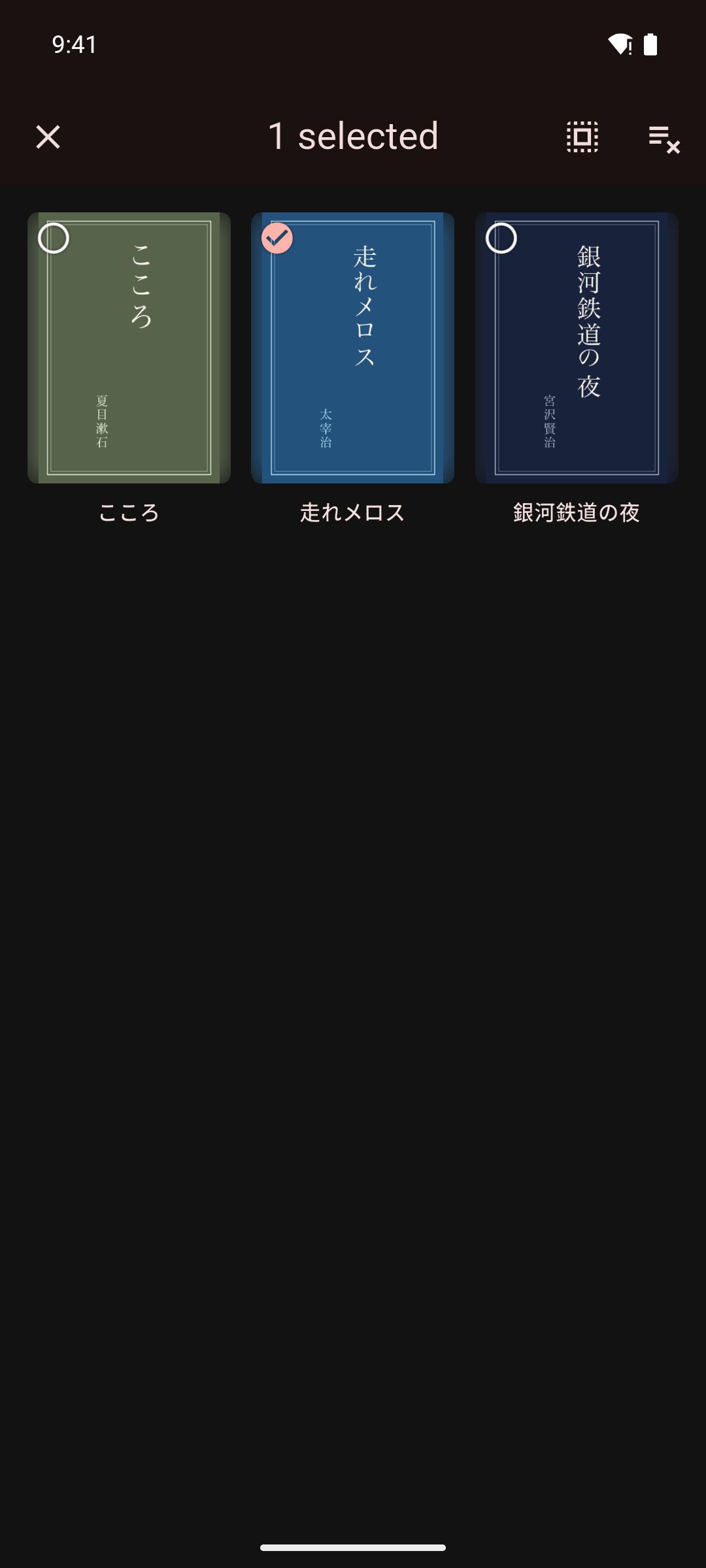
- Open the collection.
- Tap Select (the checklist icon) at the top. The collection is now in edit mode.
- Do any of these:
- Reorder: press and hold a book, then drag it to a new place. The order applies to this collection only. The first four books are the covers on the folder.
- Remove: tap the books to select them, then tap Remove from this folder. If you selected more than one book, tap Remove to confirm.
- Tap Close (the X) to leave edit mode.
Removed books stay in your library. A book that is in no other folder goes back to the main grid.
To remove one book without edit mode, press and hold it, tap Add to collection, and clear its check box.
Rename or delete a collection
- Press and hold the folder on the library grid. Inside the collection, you can also tap the menu button (⋮) at the top.
- Tap Rename or Delete.
- To rename, type the new name and tap Save. To delete, tap Delete again to confirm.
The books in a deleted collection stay in your library.
Sort the library
- Tap the sort button at the top of the Library tab.
- Under Sort by, choose one:
- Date imported: newest books first. This is the default.
- Recently read: the book you opened last comes first. Books you have never opened go last.
- Alphabetical: by title, A to Z.
Mekuru remembers your choice. The sort applies to the books on the main grid. Folders stay first, sorted by name, and books inside a collection keep the order you gave them.
Continue reading
After you have opened a book, a Continue reading card appears at the top of the Library tab. It shows the book you read most recently, including books inside folders, with how far you are as a bar and a percentage. Tap the card to open the book where you stopped.
Related pages
- Importing Books (EPUB and PDF)
- Importing Manga
- Backup & Restore: backups keep your collections and the order of books in each.